
Prerequisite 1: Vmware Fusion
- Register for an account on the new and annoying Broadcom site – https://profile.broadcom.com/web/registration
- Once you have an account, got to https://access.broadcom.com/default/ui/v1/signin/ and login with your account
- Go to this direct link and download the latest version of Fusion and then install it. https://support.broadcom.com/group/ecx/productdownloads?subfamily=VMware%20Fusion&freeDownloads=true
Prerequisite 2: Download the Kali Linux ISO
The Kali team does not have a premade VM for Apple Silicon, you will need to download the ISO and manually create the VM. The latest ISO file can be found at: https://www.kali.org/get-kali/#kali-installer-images – Just make sure you select the Apple Silicon (ARM64) version
Creating the Kali Linux VM
- Open Vmware Fusion and Select Install from disc or image
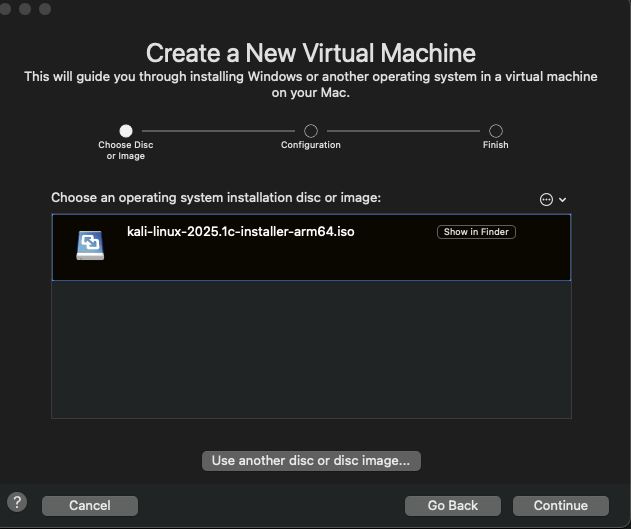
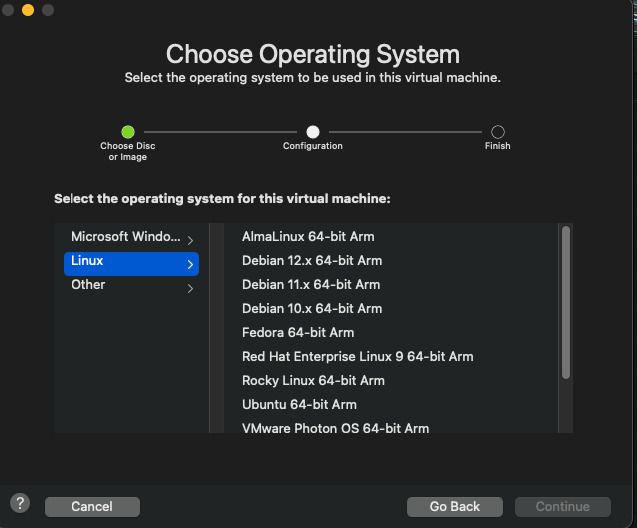
2. Select Continue, and then use Debian 12.x 64-bit Arm
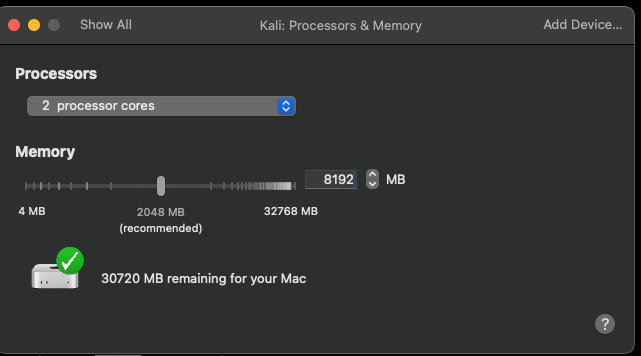
3. Customize the Settings
3.1 Set the memory to at least 8GB – 8192MB.
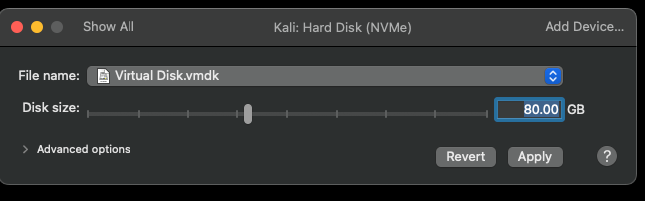
3.2 Set the Hard Disk (NVMe) to at least 80GB.
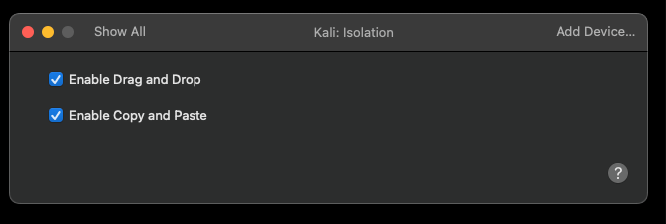
3.3 Ensure Drag and Drop and Enable Copy and Paste are enabled in Isolation
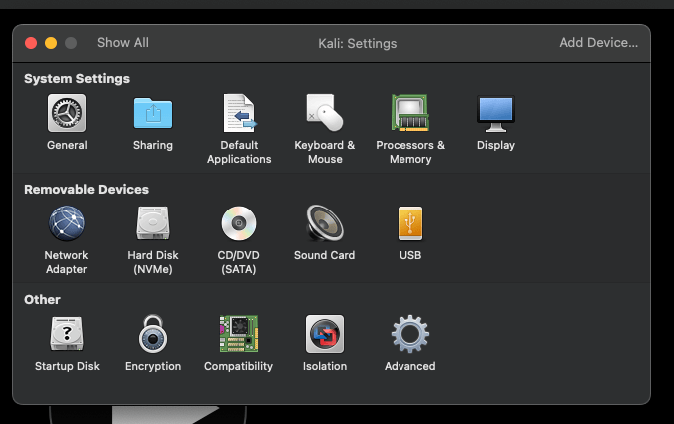
3.4 All of these are settings can be modified in Virtual Machines – Settings
Installation
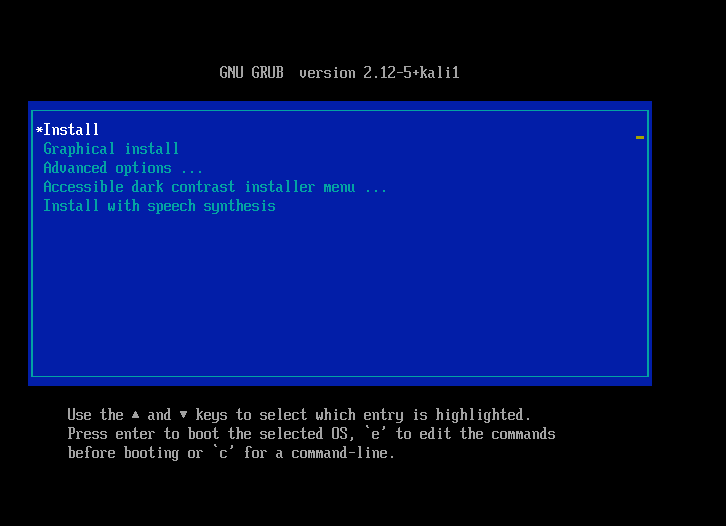
4.1 Select Install
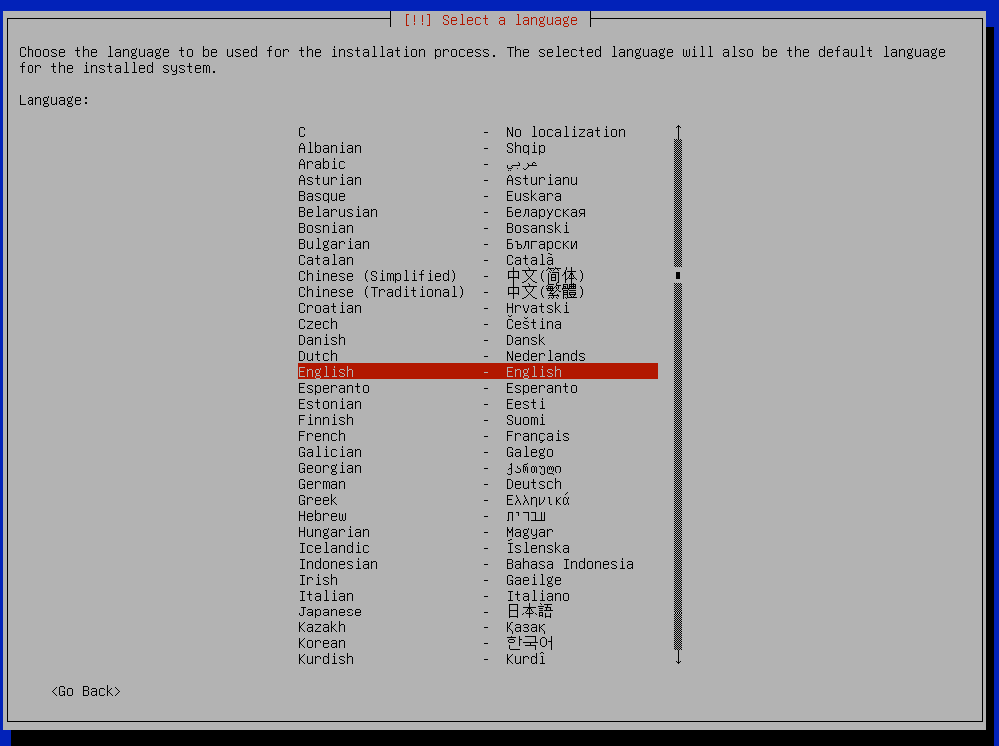
4.2 Select your Language
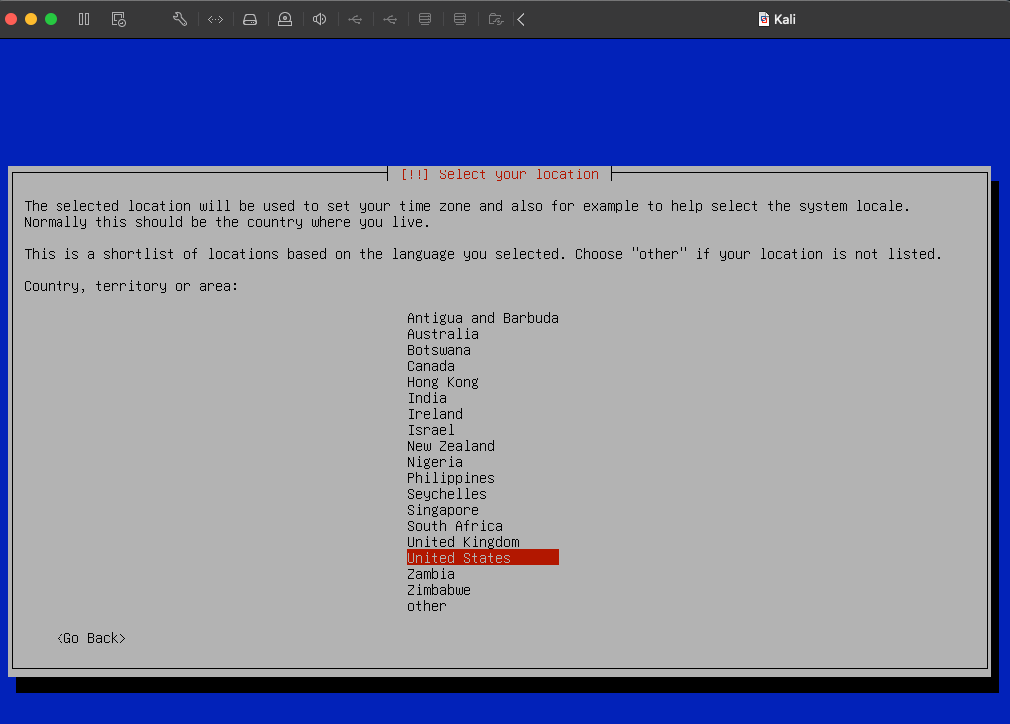
4.3 Select your country
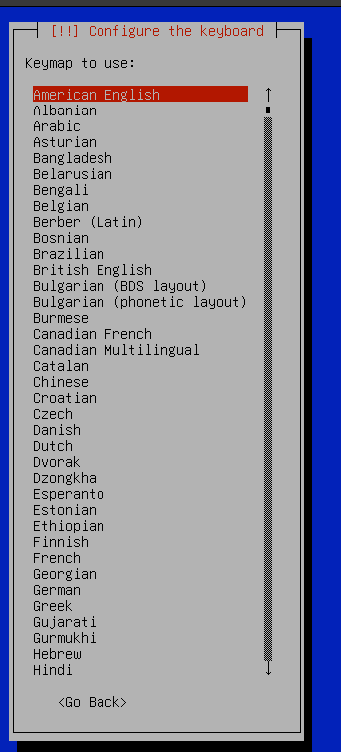
4.4 Select what keyboard language you use
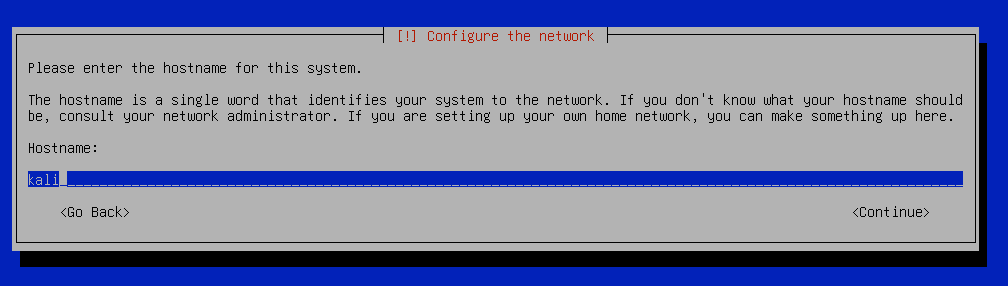
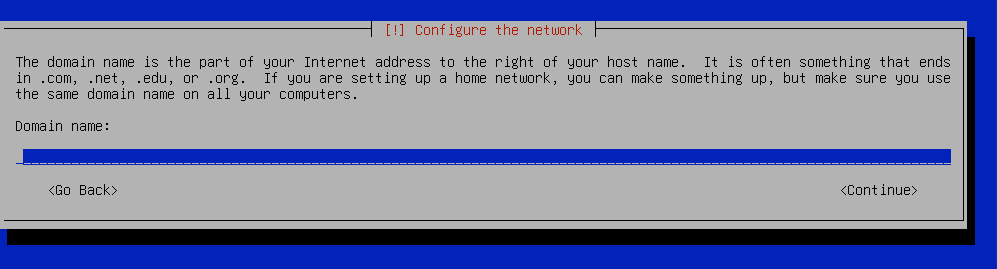
4.4 Select the Hostname/Network name for your VM. Leaving it at kali is fine. You can add a domain name if you want to, but this is generally not needed.
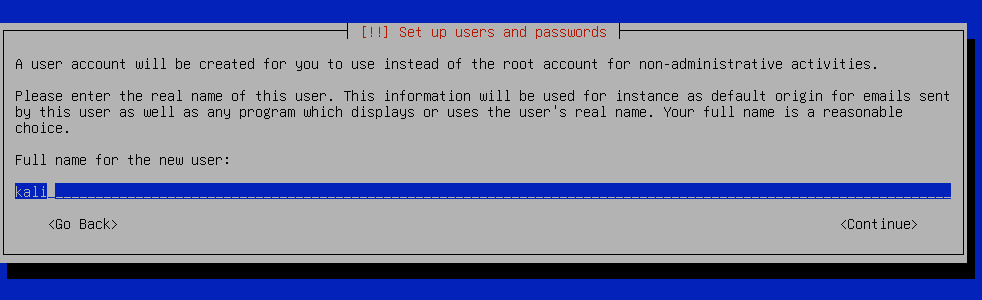
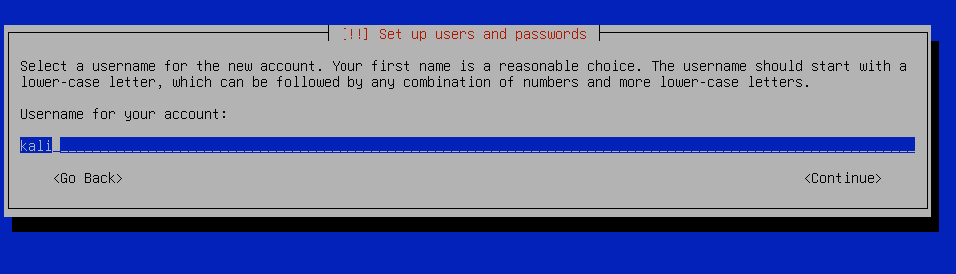
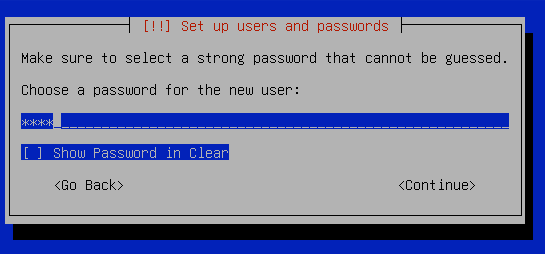
4.5 Setup a name and password for your account. This can be anything but I would recommend using kali as the login and kali as the password as this matches the setup in the kali provided VM’s and is used in a lot of documentation.
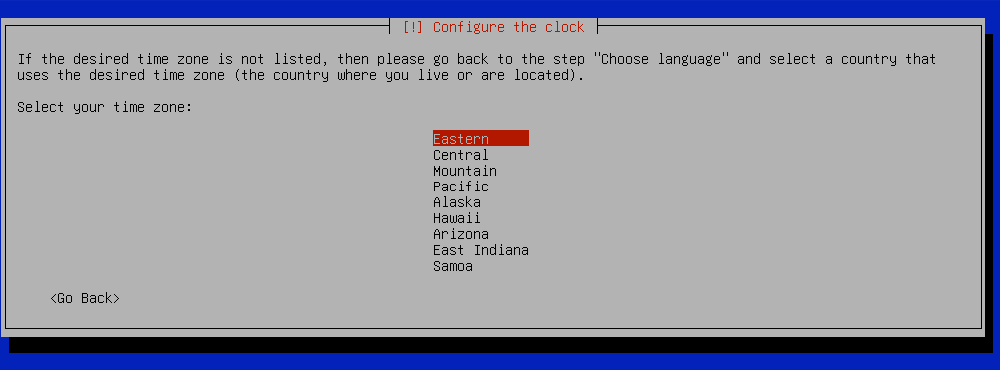
4.6 Select what time zone you are in the world.
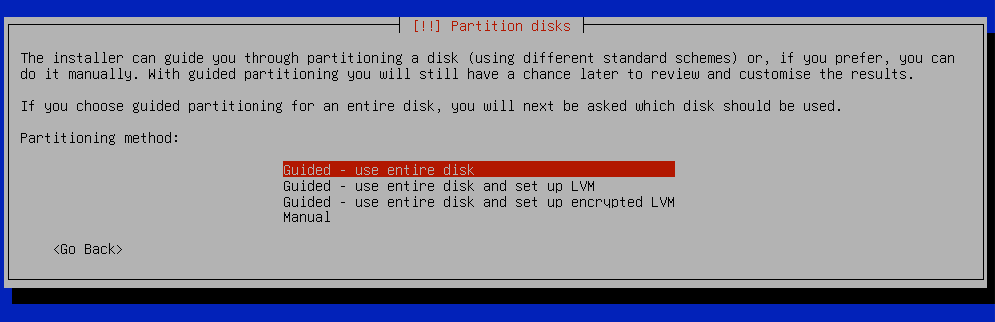
4.7 For the partitioning method, use Guided – use entire disk. This is the simplest one. You can select the encrypted LVM if you want. But for a beginner I would advise against this.
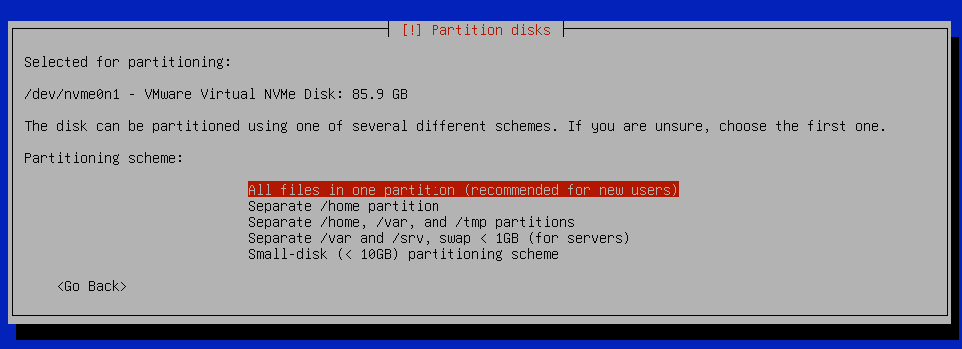
Also, use the All files in one partition. This is recommended for new users
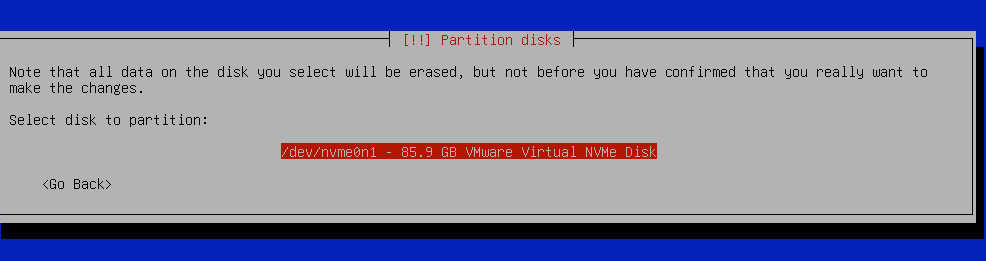
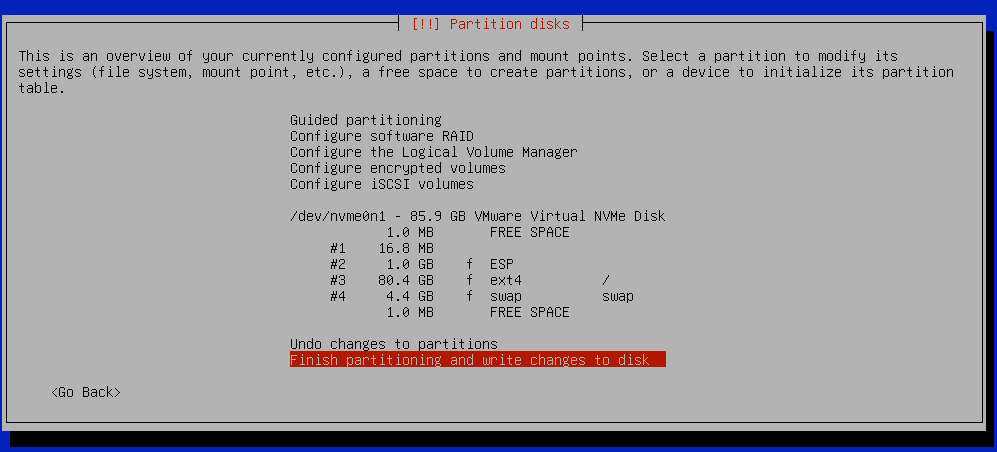
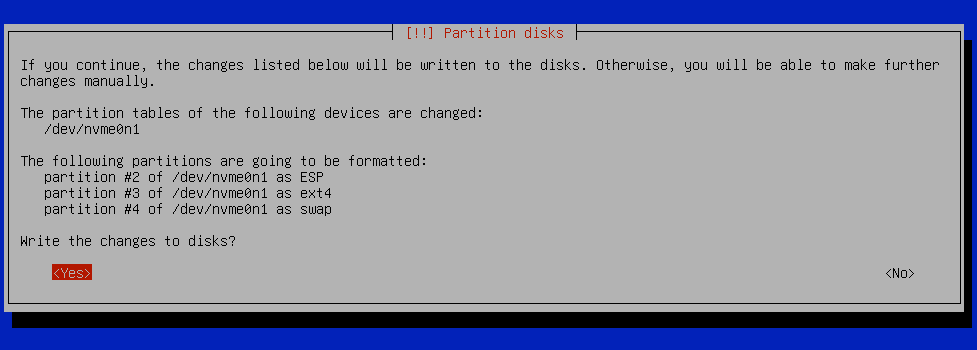
4.8 For the software selection, use the recommended defaults, you will have the option to install more applications later
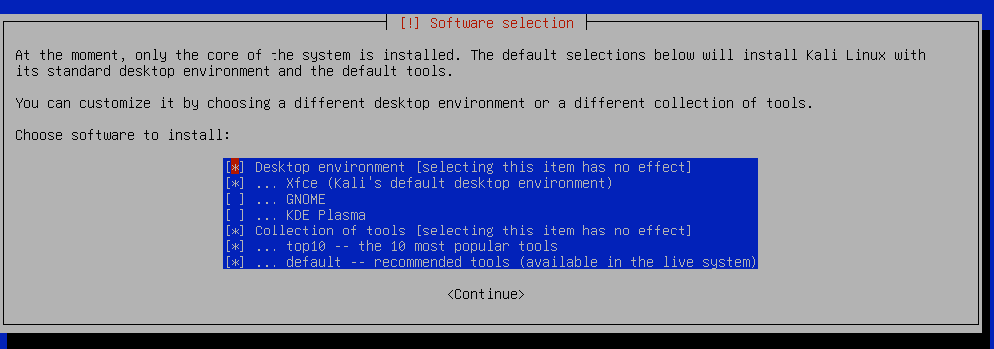
Software Update
First thing to do is a software update. Open up the terminal and run these commands
5.1 Run the command sudo apt update with whatever your password is. This will then get a list of software packages that can be updated
5.2 Run the command sudo apt dist-upgrade with whatever your password is. This will update all the installed software. It will take some time.
5.3 Allow the system to restart services
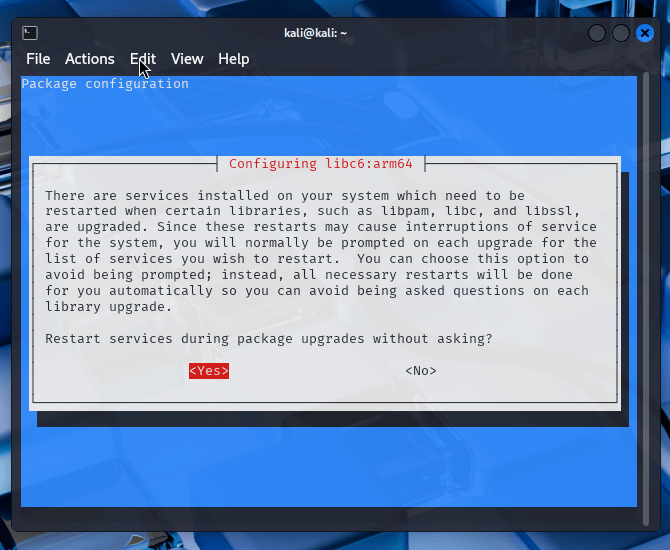
5.3 Once everything is finished installing, run the command sudo apt autoremove to remove and old software that is no longer needed.
5.4 Reboot your Kali VM to start running the new kernel and then Happy Hacking.

